
Resources can be attached to an assignment in PebblePad and made accessible directly in Moodle through the Moodle integration. These assigments can also be made to be submitted automatically as well. This article will show you how to attach a resource to an assignment with or without the integration.
Click here to setup a PebblePad workspace through Moodle Click here to learn how to create a PebblePad assignment with the Moodle integration |
1. From the workspace, click Resources.
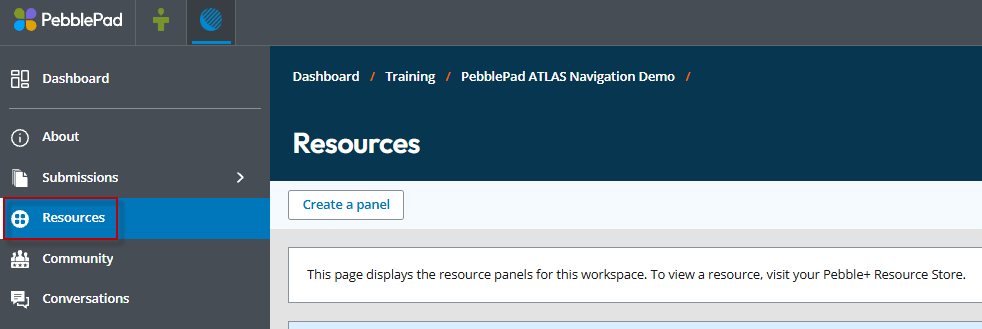
2. Click the 3 dots at the top right corner of the Resource table and click Add a resource.

3. From the next page, find the workbook or worksheet you would like to attach and click Select item.

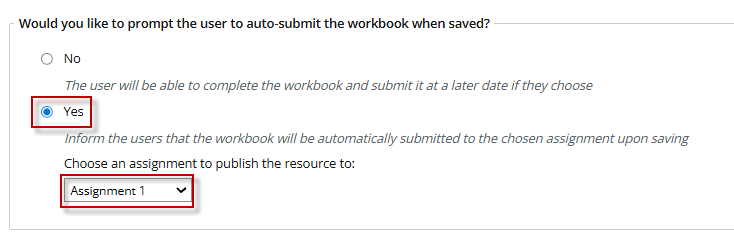
4. Once selected, under the setting Would you like to prompt the user to auto-submit the workbook when saved. Select Yes and select the assignment from the drop-down menu.
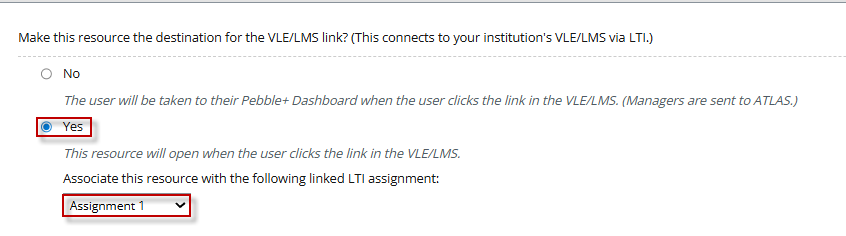
5. If you are using the Moodle integration, select Yes for the setting Make this resource the destination for the VLE/LMS Link? Any time a student clicks on the assignment in Moodle it will take them to their workbook. Select the assignment.
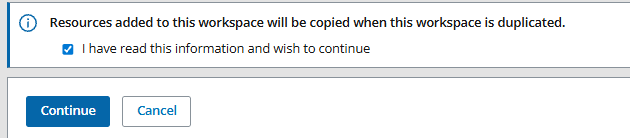
6. Check off the I check box at the bottom and click continue.

This work by Kwantlen Polytechnic University (KPU) is licensed under a Creative Commons Attribution-NonCommercial 4.0 International License.