
This guide explains how to add ALT text (alternative text) to images in Moodle. ALT text is used to support accessibility by allowing screen reader users to understand the content of images. Screen readers detect ALT text and read it aloud to students. ALT text is not visible when browsing a Moodle course.
Steps to Add ALT Text in Moodle
1. Go to your course and click on Edit settings for the activity where you want to add an image with ALT text. 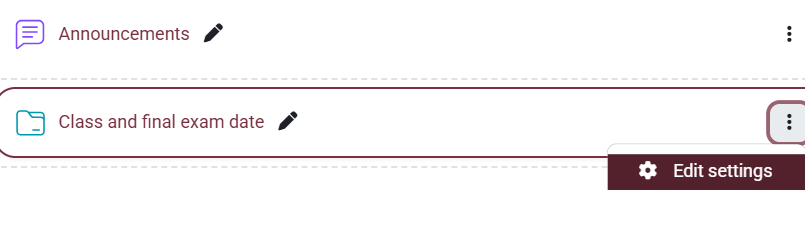
2. Scroll down to text editor, click on the image and then select the image icon from the toolbar.
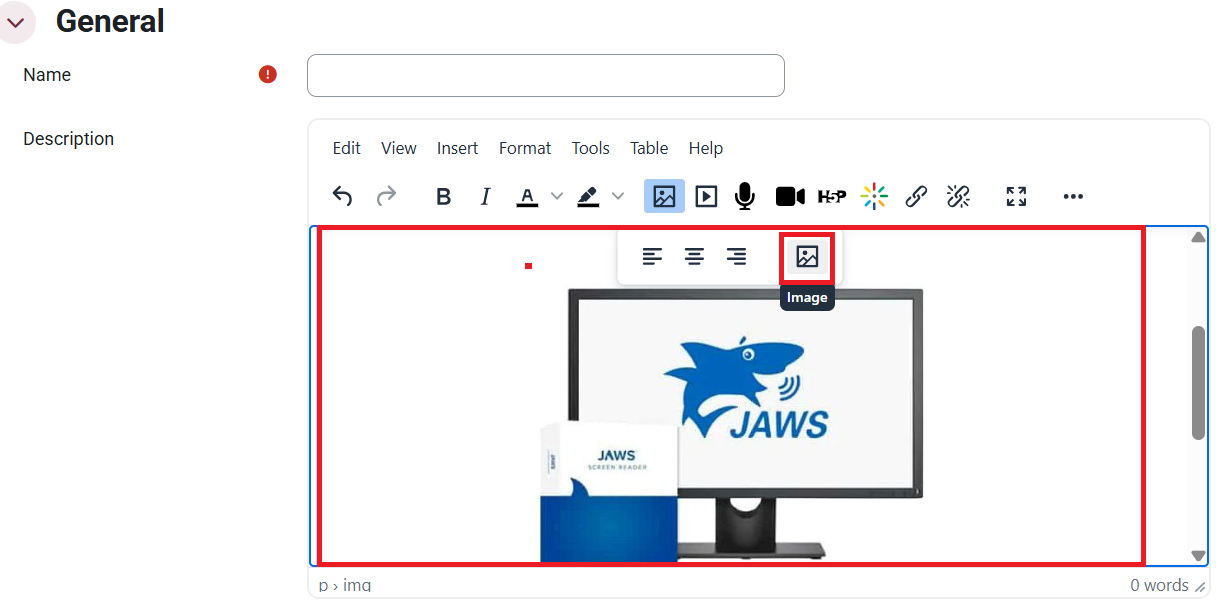
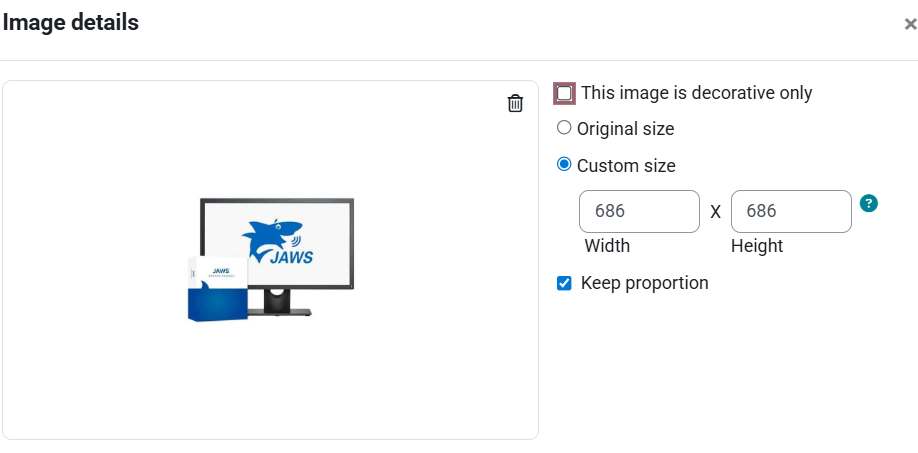
3. In the pop-up window, you will see the image details. Uncheck “ This Image is decorative only.”
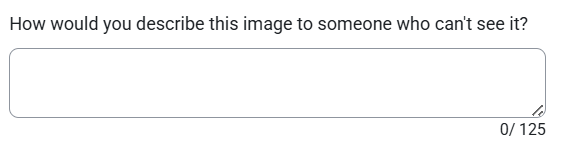
4. Provide an accurate description in the following text box: How would you describe this image to someone who can't see it? with Alt text.
5. Once done, click on Save.

This work by Kwantlen Polytechnic University (KPU) is licensed under a Creative Commons Attribution-NonCommercial 4.0 International License.