
This article features some of the accessibility features now in Kaltura.
Theme Modes
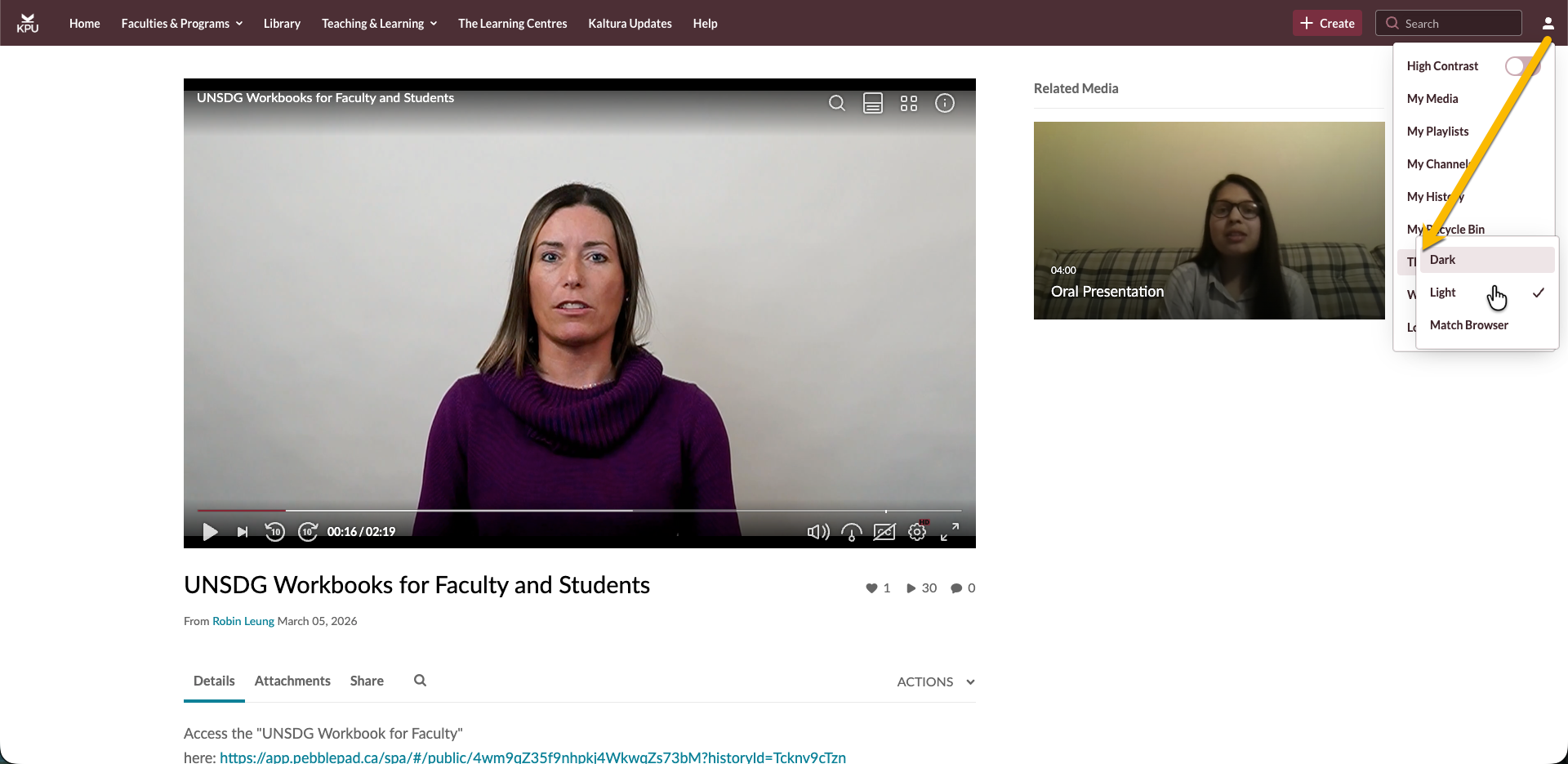
On media.kpu.ca, you have the ability to choose a light or dark theme. Options include:
- Light – Forces Light theme across the site
- Dark – Forces Dark theme
- Match Browser – Follows the user’s browser or system setting
- Click on the Profile menu > Theme.
- Select Dark/Light/Match Browser.
High Contrast Accessibility feature
While Kaltura meets WCAG AA standards, some users perfer to use a higher contrast mode. On media.kpu.ca, the High Contrast button is available on the Profile menu, allowing users to turn it on/off as an option.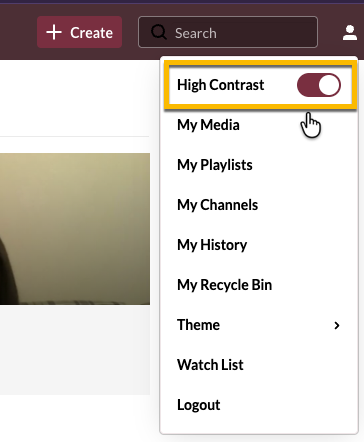
Customize how captions looks in the player
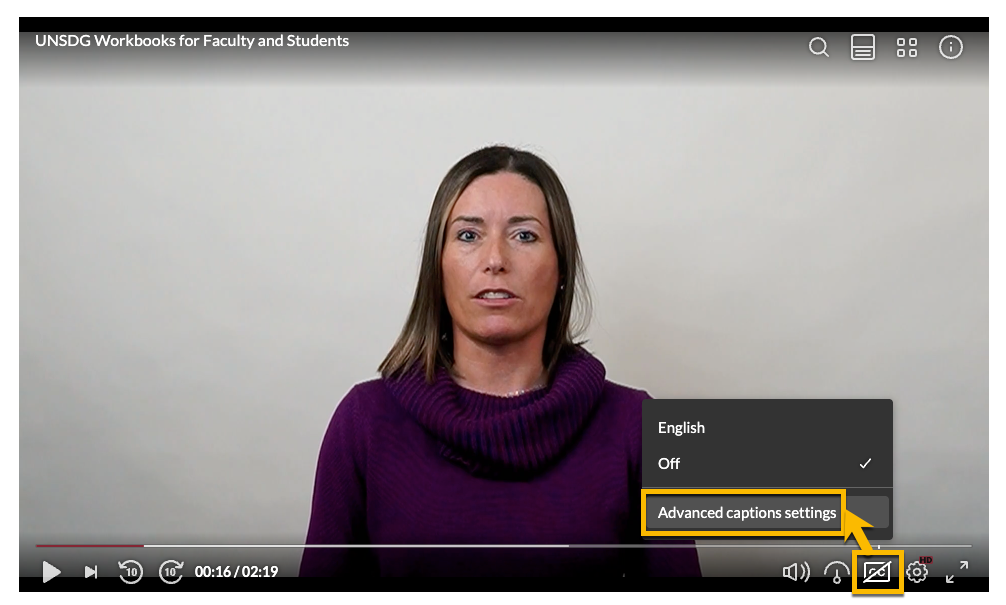
The Kaltura player now lets your customize how captions look using the Advanced captions settings option. This option is available whenever captions are available.
- Click on the captions button on the player > select Advanced captions settings
- This opens the Communications and Video Accessibility Act (CVAA) screen, allowing you to select from one of pre-set caption styles or you have the ability to customize your own by selecting "Set custom caption".
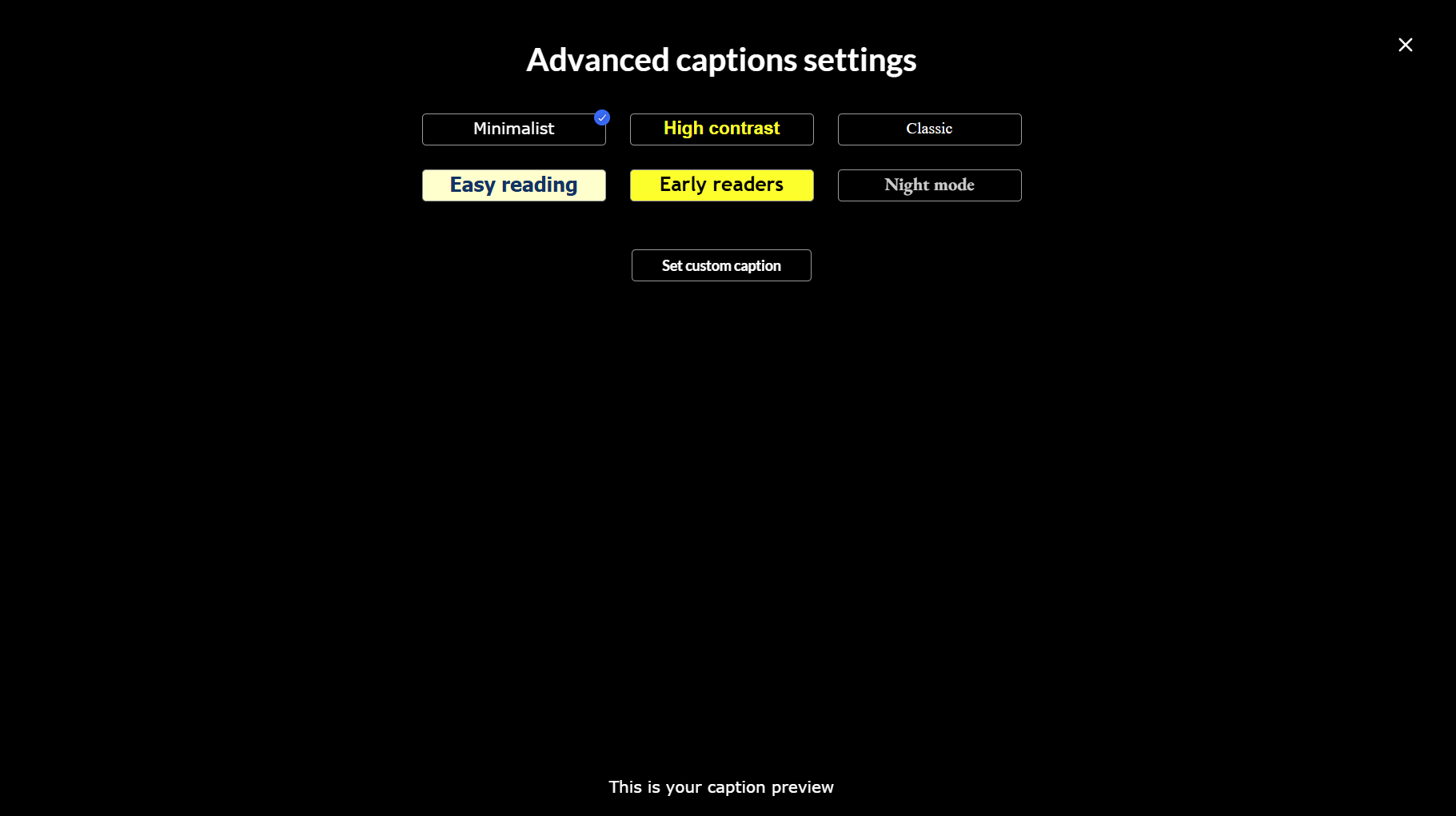 When you select a style, a check mark appears on that button and a preview displays on the CVAA screen.
Preset detailsSetting Minimalist High contrast Classic Easy reading Early readers Night mode Size Medium Medium Small Large Large Medium Font weight 400 700 400 700 700 700 Alignment Center Center Center Left Center Center Font color White (#FFFFFF) Yellow (#FFFF00) White (#FFFFFF) Dark Blue (#003366) Black
(#000000)Light Gray
(#CCCCCC) or CyanFont family Sans Serif Arial Times New Roman Tahoma Trebuchet MS EB Garamond Font opacity 100% 100% 100% 100% 100% 100% Background color Black (#000000) Black (#000000) Black
(#000000)Light Yellow (#FFFFCC) Bright Yellow (#FFFF00) Black
(#000000)Background opacity 100% 100% 100% 100% 100% 75%
Keyboard and accessibility
- Use Tab and Shift+Tab to move between controls.
- Use arrow keys to navigate options within lists.
- The player uses ARIA labels to announce style descriptions to screen readers.