
If you are joining a Zoom class, office hour, or workshop and appear as a guest, it usually means you are not signed in with your KPU account (SSO). To ensure you are properly identified and admitted into your session, you must sign in with your KPU account before joining. In this article you will learn how to fix this and ensure you join correctly.
If you are using the Zoom application - Open the application.
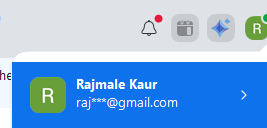
- Click your profile picture. You will see the email address displayed and can confirm whether it is your KPU email. If it is not, add or switch to your KPU account before continuing and joining the session.
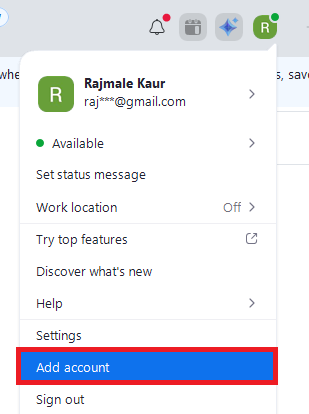
- Select Add Account
- A sign-in window will appear.
- Sign in using your KPU account:
- Select Sign in with SSO
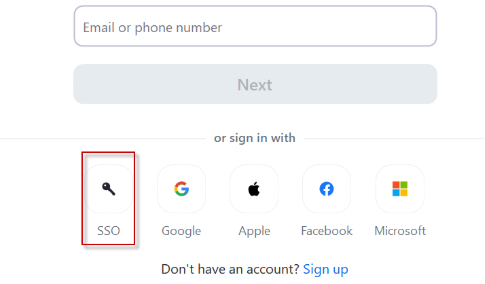
- Enter the company domain:
kpu-ca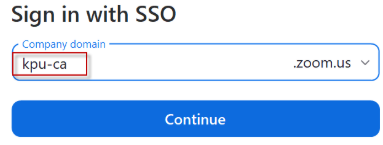
- Sign in using your KPU email credentials
- Once signed in, the option will change to Switch Account. It will display all accounts you are currently signed in to. For KPU meetings, ensure you are using your KPU account.
- Open the application.
- Click your profile picture. You will see the email address displayed and can confirm whether it is your KPU email. If it is not, add or switch to your KPU account before continuing and joining the session.
- Select Add Account
- A sign-in window will appear.
- Sign in using your KPU account:
- Select Sign in with SSO
- Enter the company domain:
kpu-ca - Sign in using your KPU email credentials
- Select Sign in with SSO
- Once signed in, the option will change to Switch Account. It will display all accounts you are currently signed in to. For KPU meetings, ensure you are using your KPU account.
If you are using a web browser - Click the meeting link provided by your instructor
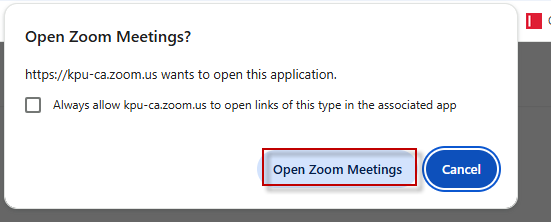
- A new window will open . Select Open Zoom Meetings
- Click Sign in with SSO
- Enter the company domain:
kpu-ca - Sign in using your KPU email credentials

This work by Kwantlen Polytechnic University (KPU) is licensed under a Creative Commons Attribution-NonCommercial 4.0 International License.
- Click the meeting link provided by your instructor
- A new window will open . Select Open Zoom Meetings
- Click Sign in with SSO
- Enter the company domain:
kpu-ca - Sign in using your KPU email credentials