
The ReadSpeaker Plugin provides text-to-speech (TTS) functionality within Moodle, enabling users to listen to course content with synchronized word or sentence highlighting. The tool enhances accessibility and inclusivity by supporting diverse learning needs. Click on each item to see the different features available with ReadSpeaker.
1. Translating with ReadSpeaker
ReadSpeaker not only allows users to listen to content in the given language, but also can provide translation to different languages.
Note: ReadSpeaker’s translation is powered by Google. Text is processed temporarily in memory for translation and is discarded immediately after.
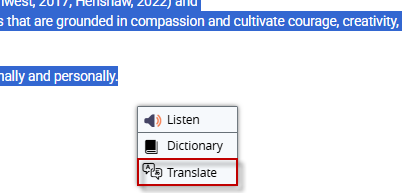
Click here to learn how to translate.
2. One Click listen button & Customizable Reading Speed
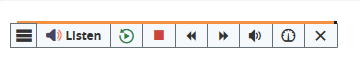
It provides instant one-click reading of content and assessments within Moodle. It starts reading from top to bottom. Using the buttons on the player, the user can stop the audio version of the content, replay from the top after stopping, pause the reading, restart the reading from where it was paused, forward or rewind to content further or earlier on the page using the skip buttons, adjust the volume and reading speed, and close the player (which stops the reading).
3. Synchronized Highlighting & Highlight and Listen
Words and sentences are highlighted as they are spoken which helps comprehension and focus. Highlight a specific portion of text and listen

4. DocReader
ReadSpeaker docReader is a text-to-speech tool enabling you to listen to documents on your browser. Listen to specific sections or listen to entire documents.
Click here to learn more.
5. Dictionary
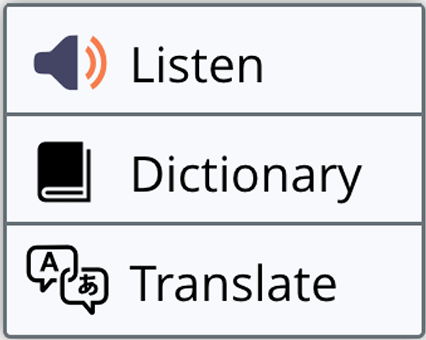
The Dictionary is a reading support tool that allows users to look up definitions while reading. By selecting a word and choosing the Dictionary option from the pop-up menu, ReadSpeaker will display a definition in a pop-up window using an online dictionary that matches the language of the current reading voice. Please note that this feature is only supported for certain languages.
Click here to learn how to restrict dictionary.
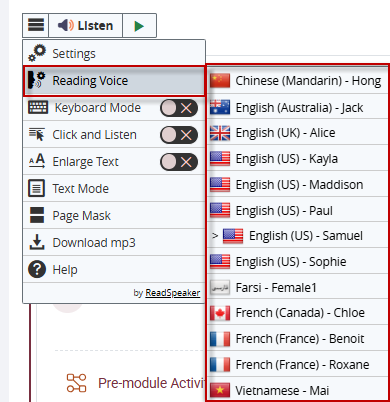
6. Reading Language and Voice
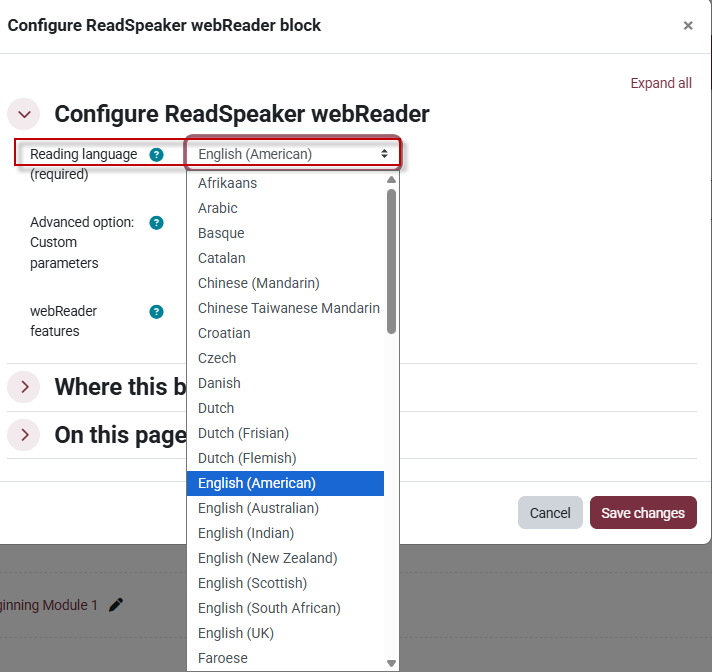
ReadSpeaker allows you to set the reading language and reading voice. Click here to learn how to change them.

This work by Kwantlen Polytechnic University (KPU) is licensed under a Creative Commons Attribution-NonCommercial 4.0 International License.