
ReadSpeaker gives you the option to permit or restrict the use of translations and dictionary in your course. Restrictions can be applied to a specific activity or a course. This article will show you how to restrict for the a course or a specific activity.
Restricting ReadSpeaker for your course
1. From your course main page, turn Edit mode On from the top right corner of your screen.

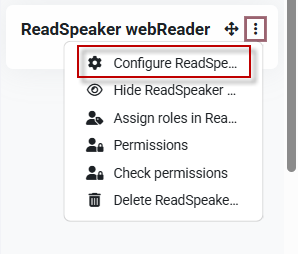
2. Click the three dots to the right of the ReadSpeaker block.
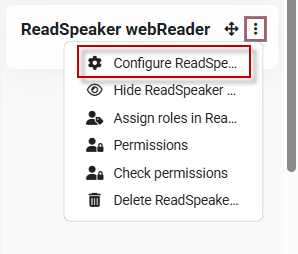
3. Click Configure ReadSpeaker.
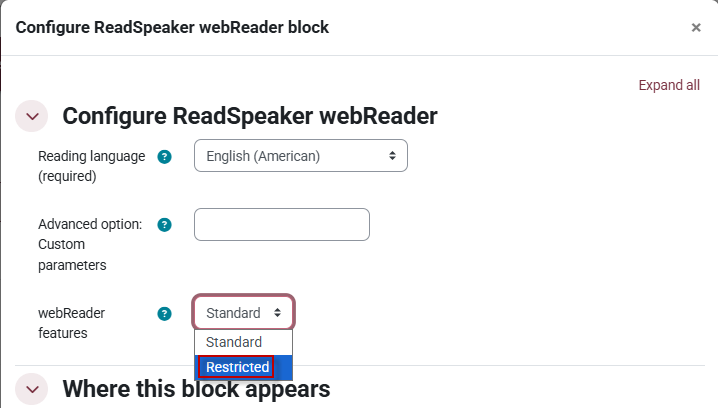
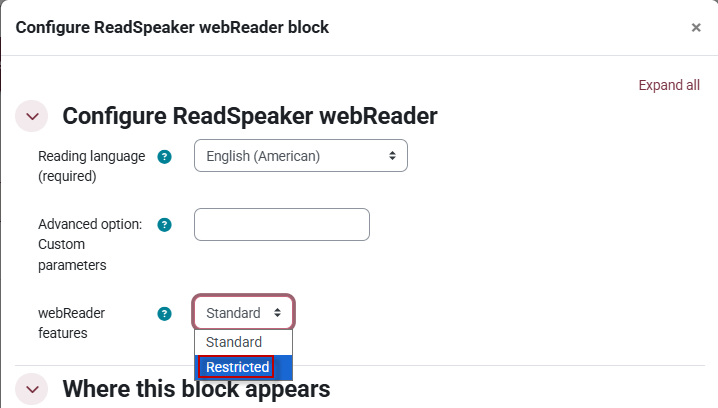
4. Under the Configure ReadSpeaker section set WebReader features to Restricted.
Restricting ReadSpeaker for a specific activity:
This will require more than one ReadSpeaker block added to your course, please follow the instructions carefully.
Setting ReadSpeaker to any course page only
1. From your course main page, turn Edit mode On from the top right corner of your screen.

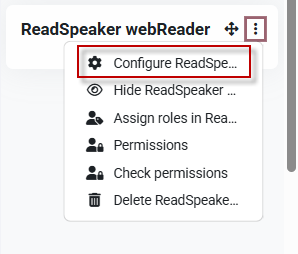
2. Click the three dots to the right of the ReadSpeaker block.
3. Click Configure ReadSpeaker.
4. Under the Where this block appears section set Display on page types to Any course page.
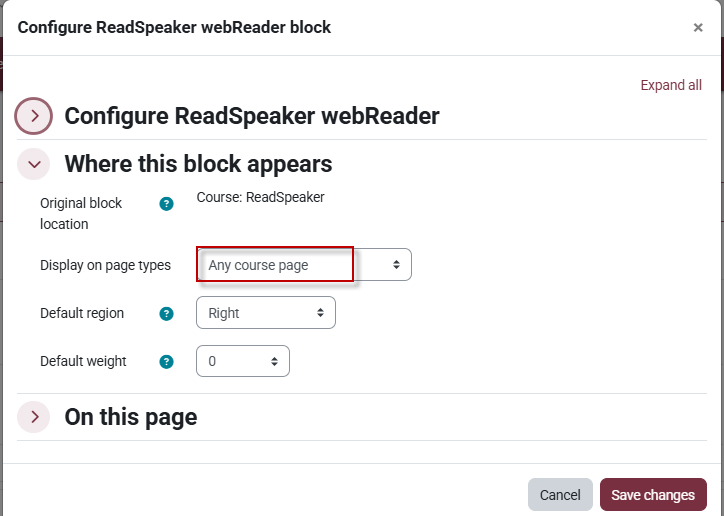
5. Do not set restrictions on this block.
Adding ReadSpeaker to an activity
1. Turn Edit mode on from the top right corner.

2. Click on your selected activity.
3. Open up the block drawer on the right side of your screen.

4. Click Add a block.

5. Select ReadSpeaker.
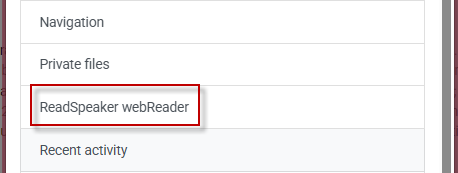
6. Click the three dots to the right of the ReadSpeaker block.
7. Click Configure ReadSpeaker.
8. Under the Configure ReadSpeaker section set WebReader features to Restricted.

This work by Kwantlen Polytechnic University (KPU) is licensed under a Creative Commons Attribution-NonCommercial 4.0 International License.