
ReadSpeaker not only allows users to listen to content in the given language, but also can provide translation to different languages. This article will show you how to translate text using ReadSpeaker in Moodle.
Note: ReadSpeaker’s translation is powered by Google. Text is processed temporarily in memory for translation and is discarded immediately after.
1. Highlight any text in Moodle.

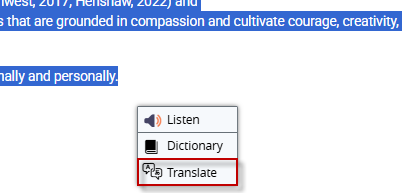
2. From the drop-down menu that opens click the translate button.
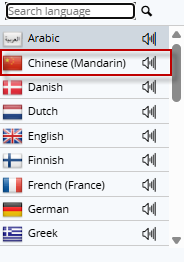
3. From the list of languages select the language that you would like the text translated to.
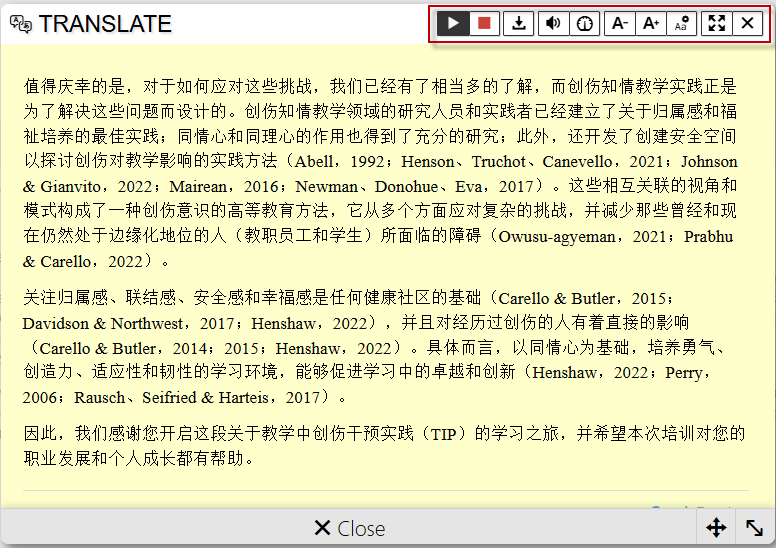
4. Find all of your settings at the top of the popup window and click the play button to start listening.

This work by Kwantlen Polytechnic University (KPU) is licensed under a Creative Commons Attribution-NonCommercial 4.0 International License.