
One Click listen button & Customizable Reading Speed
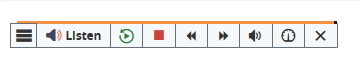
provides instant one-click reading of content and assessments within Moodle. It starts reading from top to bottom. Using the buttons on the player, the user can stop the audio version of the content, replay from the top after stopping, pause the reading, restart the reading from where it was paused, forward or rewind to content further or earlier on the page using the skip buttons, adjust the volume and reading speed, and close the player (which stops the reading).
Synchronized Highlighting & Highlight and Listen
Words and sentences are highlighted as they are spoken which helps comprehension and focus.
Highlight a specific portion of text and listen

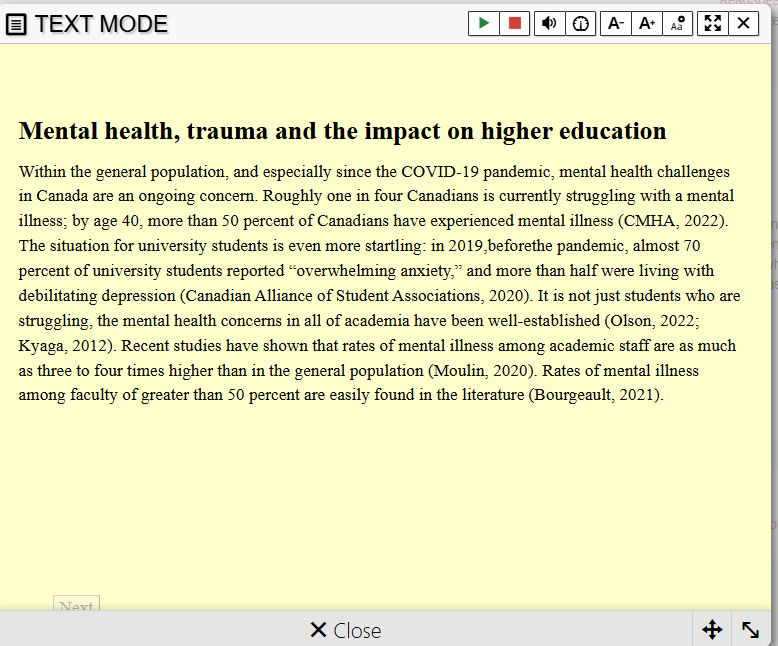
Text Mode
Converts content into an easy-to-read, customizable, simplified format.
Customizable highlighting colours
A default colour scheme is provided for highlighting, with light blue for words, light green for sentences, and black for highlighted text. You can personalize these colours if the Settings option is enabled in the menu.
Using Dictionary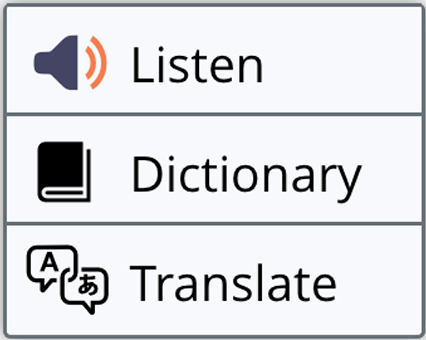
The Dictionary is a reading support tool that allows users to look up definitions while reading. By selecting a word and choosing the Dictionary option from the pop-up menu, ReadSpeaker will display a definition in a pop-up window using an online dictionary that matches the language of the current reading voice. Please note that this feature is only supported for certain languages.

This work by Kwantlen Polytechnic University (KPU) is licensed under a Creative Commons Attribution-NonCommercial 4.0 International License.