
ReadSpeaker enables users to listen to course content with synchronized word or sentence highlighting enhancing accessibility and inclusivity by supporting diverse learning needs. This article will show you how to enable ReadSpeaker in your Moodle course.
1. From your Moodle course, turn Edit mode On located on the top right corner of your browser.
 .
.
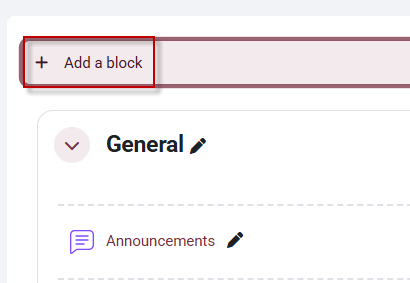
2. At the top of your course or from the blocks window on the right, click the Add a block button.
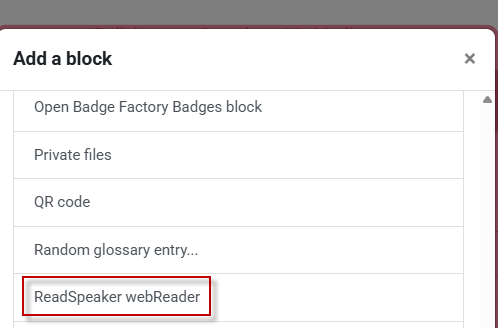
3. From the block list, select the ReadSpeaker block.
Changing the Visibility of the ReadSpeaker on a page
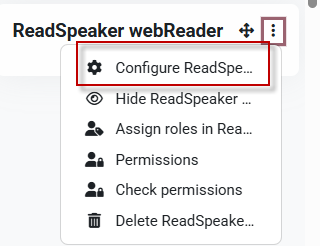
1. With Edit mode turned On, click the three dots to the right of the block.
2. Click Configure ReadSpeaker
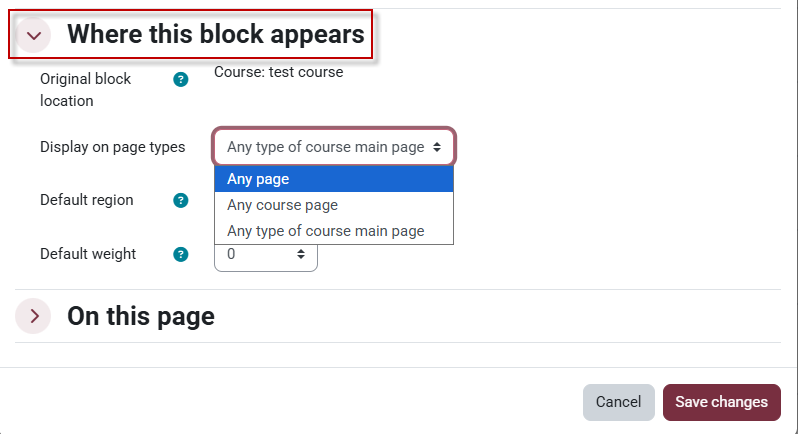
3. Under the section Where this block appears you can select if the block will appear on any page or if it will be on the main page only.
- Any type of course main page, will remove the plugin from activities.
- Any page will apply to all pages
- Any Course Page will show ReadSpeaker on content pages.

This work by Kwantlen Polytechnic University (KPU) is licensed under a Creative Commons Attribution-NonCommercial 4.0 International License.