
Audio transcription automatically converts the audio from cloud-recorded Zoom meetings and webinars into text. The transcript is generated as a separate VTT file and can also be displayed within the video as closed captions. Timestamps allow viewers to easily follow and navigate the recording, and the text can be edited to improve accuracy.
To enable audio transcription, follow the steps below.
1. Sign in to the Zoom web portal using KPU email and password with domain kpu-ca.
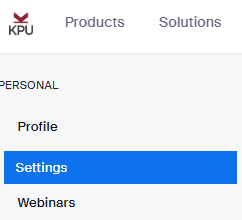
2. In the left-hand navigation menu, click Settings to access your account settings.
3. From the top navigation menu, select the Recording tab to view all recording-related options.

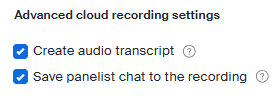
4. Scroll down to the section labeled Advanced cloud recording settings and check the box in front of create audio transcript.This setting allows Zoom to automatically generate a transcript for any meeting that is recorded to the cloud.
5. Once the option is selected, click Save to confirm and apply the changes.

This work by Kwantlen Polytechnic University (KPU) is licensed under a Creative Commons Attribution-NonCommercial 4.0 International License.