
The Recycle Bin helps recover deleted media quickly and easily. Deleted media items will be temporarily stored in the recycle bin for 30 days before being permanently deleted.
This resource will show you how to:
- Move media to the recycle bin
- Restore deleted items from the recycle bin
- Permanently delete items from the recycle bin
Move media to recycle bin
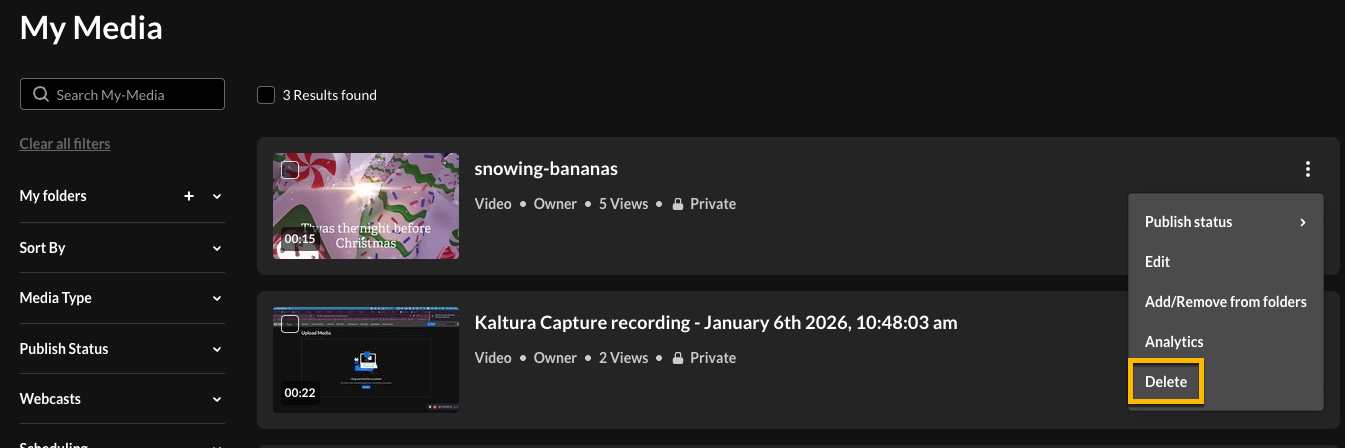
- From the My Media page, click the three dots icon next to the entry you want to delete. Then select Delete. If you want to delete more than one entry, click the boxes next to each one.
- You will be prompted to delete this media and moved to Recycle Bin. Select Delete or Cancel.
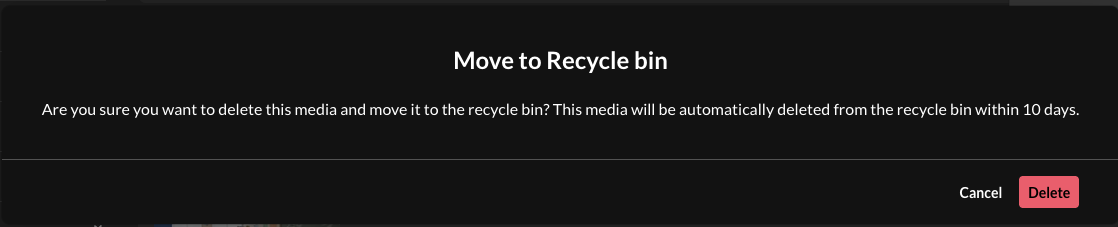
NOTE: All deleted items in the Recycle Bin will be automatically permanently deleted from the recycle bin in 30 days.
Restore deleted items from the recycle bin
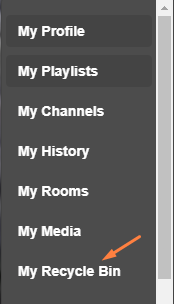
- Go to the user menu
 and choose My Recycle Bin.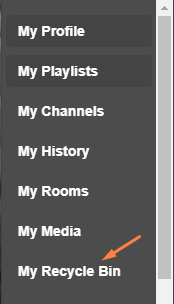
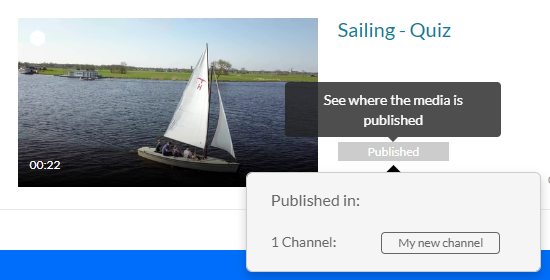
- On the Recycle Bin page, you can see all the media items that have been deleted. The publish status for each item is greyed out. If you click on it, you can see where the media was originally published.
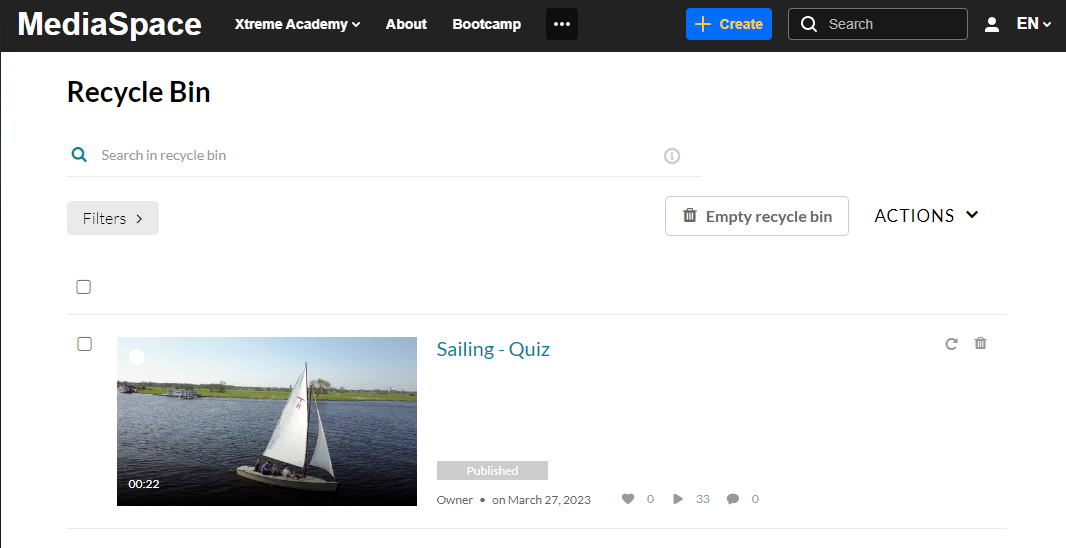
- To restore the item, click the restore icon
 .
.
A confirmation message displays.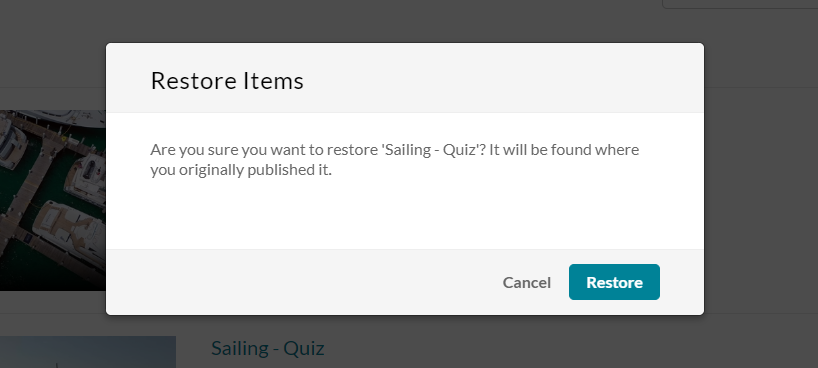
- Choose Restore or Cancel.


Permanently Delete items from the recycle bin
Although items will be automatically deleted after a specified number of days, an item can also be permanently deleted manually by the media owner.
- Go to the user menu and choose My Recycle Bin.
- On the Recycle Bin page, click on the trash icon next to the item. A warning message will display.
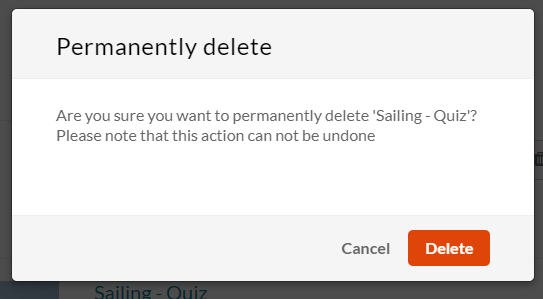
- Click Delete. And the item is permanently deleted.
NOTE: Deleted items in the Recycle Bin are permanently deleted and CANNOT be retrieved.