
The Organizer activity is replacing the Scheduler plugin. It helps instructors schedule appointments with their students and supports both individual and group bookings, providing greater flexibility in managing meetings.
1. From your desired course, turn edit mode on.
2. Click Add an activity or resource.
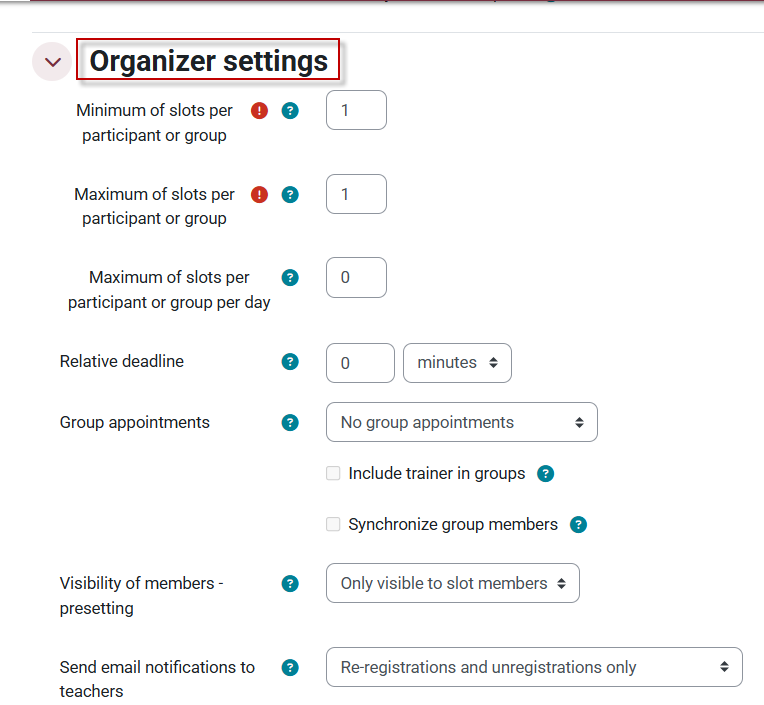
3. Configure the organizer settings as you would like them to be, such as the Relative deadline and visibility settings.
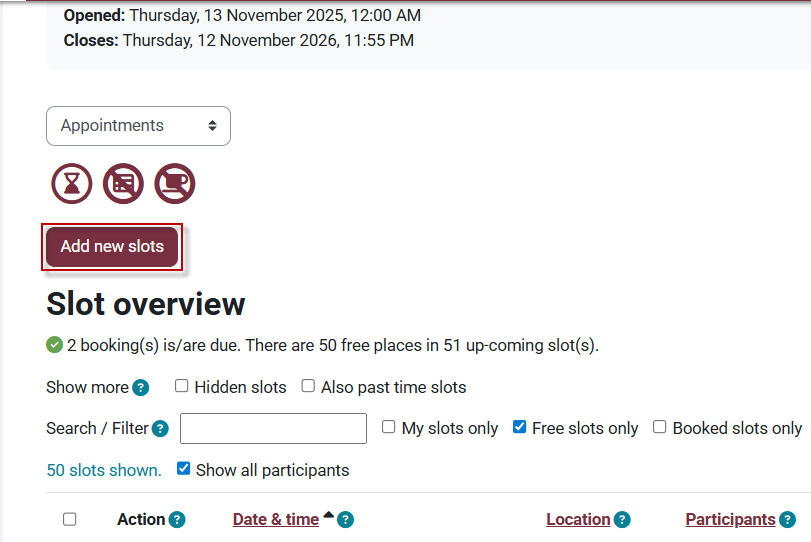
 4. From the main organizer page, click Add new slots to start creating timeslots.
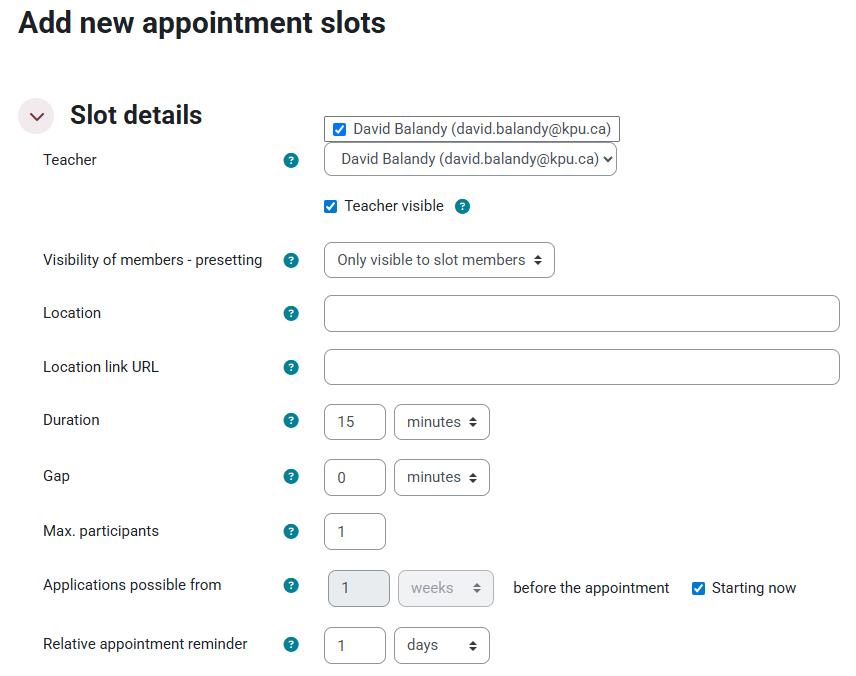
5. From the scheduling page, configure the slot details, including the Teacher section.
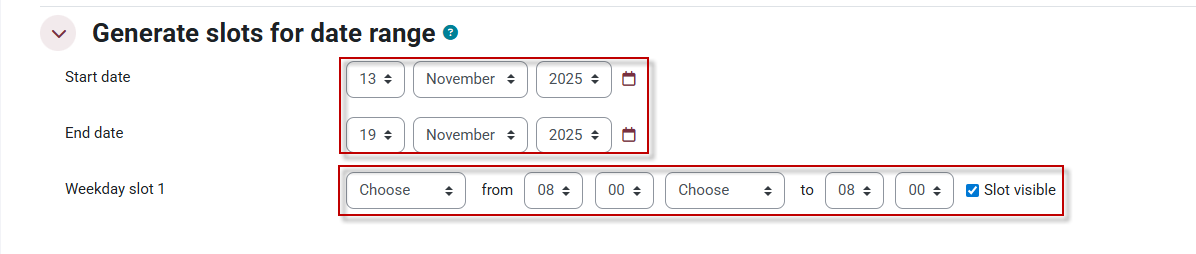
6. Under Generate slots for date range choose the Start date and End date, as well as which Weekday slots you would like to generate.
7. At the bottom of the page, click Save changes to generate the time slots.

This work by Kwantlen Polytechnic University (KPU) is licensed under a Creative Commons Attribution-NonCommercial 4.0 International License.