
In OneTopic Format, instructors can configure the appearance of each tab at every possible state. This article will show you how to edit each tab in OneTopic Format.
1. In your course navigate to the tab that you would like to edit.
2. Turn Edit mode On.

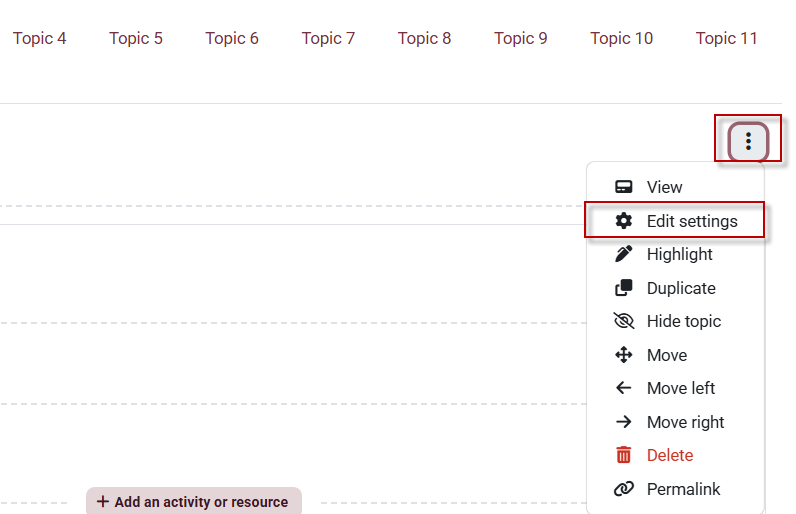
3. Click the Top most Verticle elipses of the content page. Click Edit Settings from the drop-down menu.
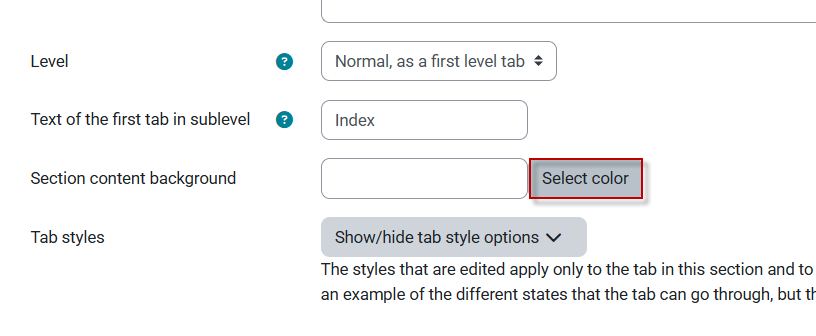
4. To edit the content section background color, click the Select Color button.
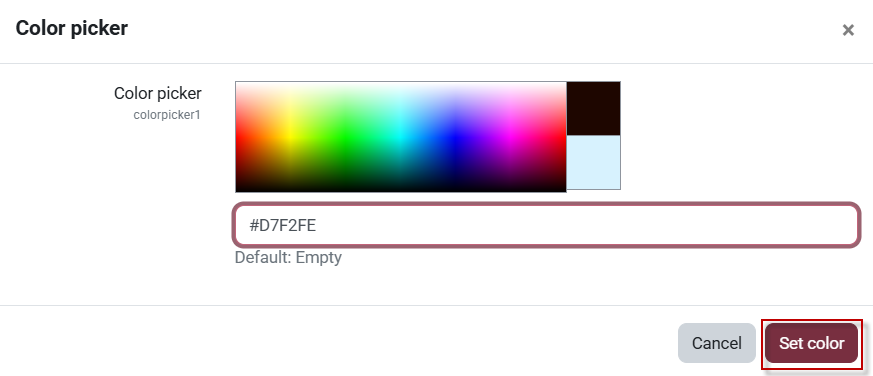
5. Select the color that you would like and click Set color.
6. To adjust the tab style, click on the Show/hide tab style options button. Then select the phase that you would like to adjust.
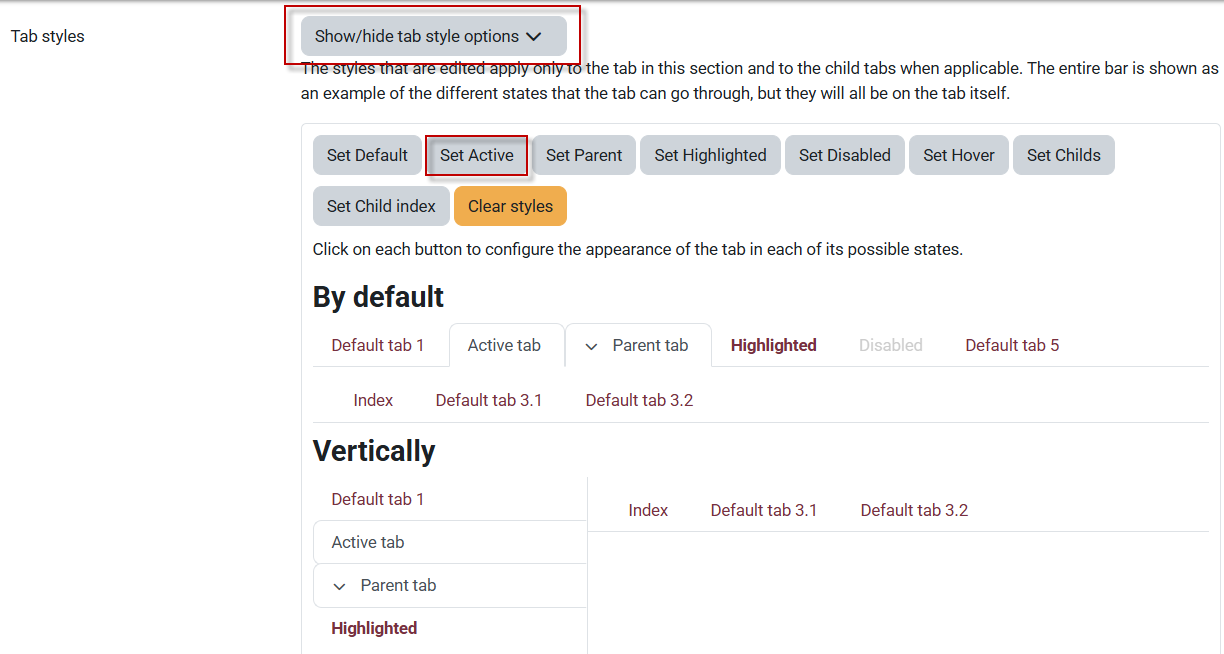
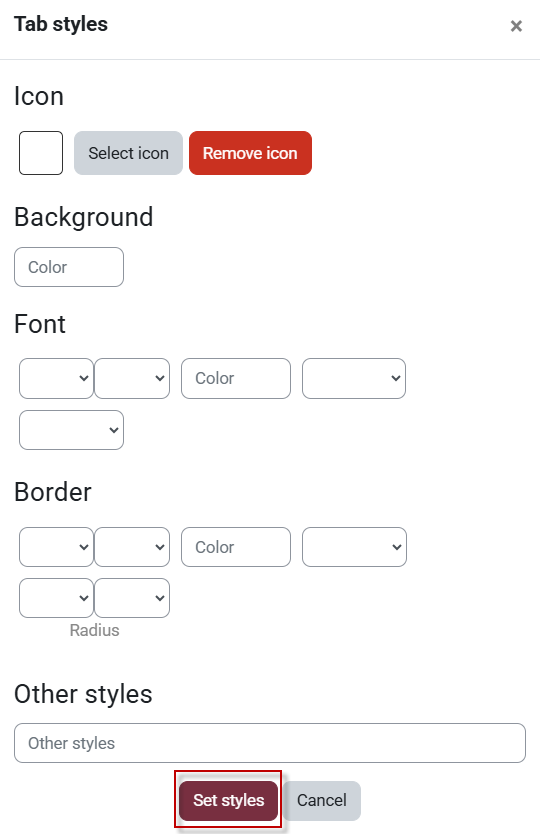
7. The Tab styles window will open from there adjust the different settings and click Set styles once complete.
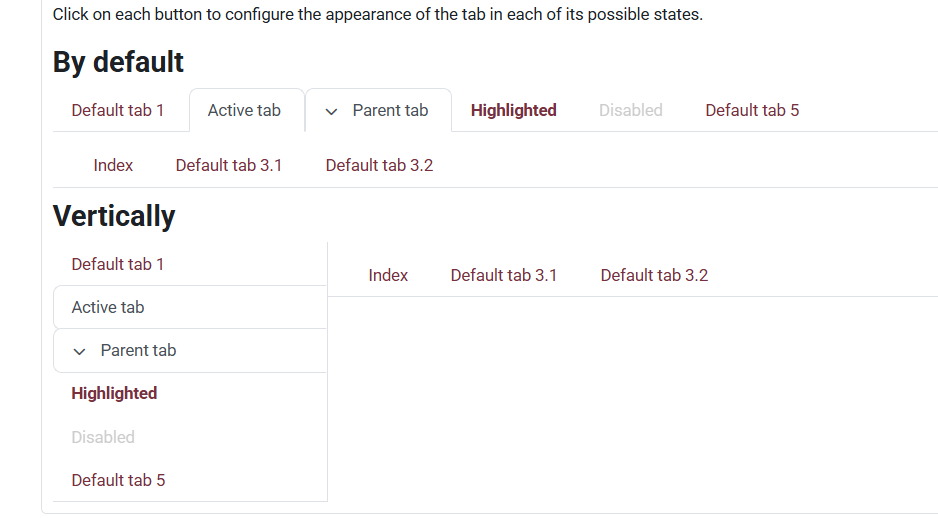
8. Underneath the different phases, you can test out your settings to see if that would work.

This work by Kwantlen Polytechnic University (KPU) is licensed under a Creative Commons Attribution-NonCommercial 4.0 International License.