
This guide explains how to enable Course Completion in a Moodle course. The Course Completion feature allows instructors and students to track progress and determine whether course requirements have been completed. Once all completion requirements are met, students can automatically receive a badge.
Setting Up Course Completion in Moodle

4. Now set "Enable completion tracking" and "Show activity completion conditions" to Yes 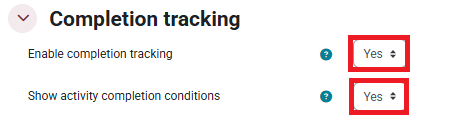
5. Once completed, click Save changes.
Setting Up Activity Completion
- Graded Quizzes/Assignments
- View-only content such as videos or pages
Setting up your Quizzes for Activity Completion
You will need to set up a grade to pass for your quizzes. Without a specified grade to pass, Moodle will not be able to determine whether a quiz should be marked as completed.
1. Go to your course and turn on Edit mode using the toggle on the top right side.

2. Locate your quiz within the course and click on it.
3. On the quiz page, click Questions located at the top of the page.

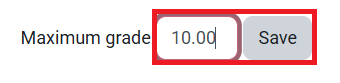
3. On the right side of the page, confirm that the Maximum grade is correct then click Save.
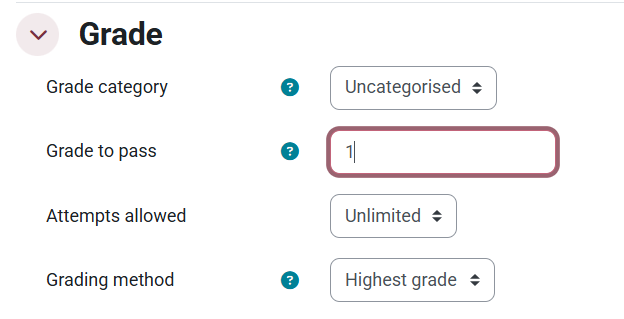
4.Now, click on Quiz settings and scroll down to the Grade section and enter a value in the Grade to pass field. This is the minimum grade a student must achieve for the quiz to be considered complete.
5. Scroll to the bottom of the settings page and expand the Completion conditions section. You will see the following conditions:
- None
- Student Must manually mark the activity as done
- Add Requirements
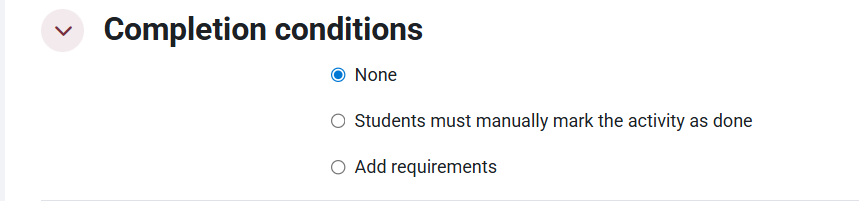
6. Click on Add requirements and select:
- Receive a grade
- Receive a passing grade
This allows Moodle to automatically track quiz completion based on the passing grade you set.
You can also optionally enable any other conditions you would like to use for the quiz to be considered complete.
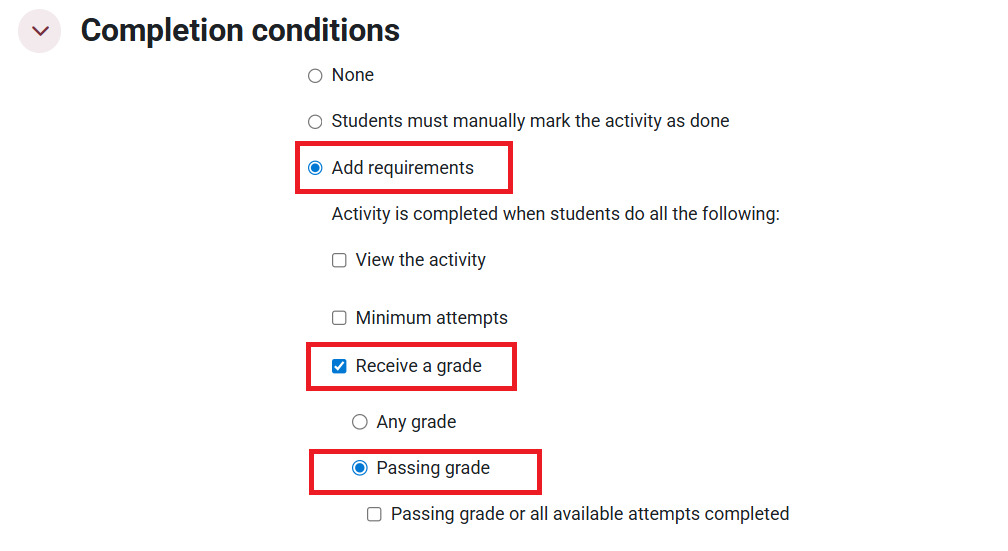
7. Click Save and display to save your changes. Repeat these steps for any quizzes or graded activities that should count toward course completion or badge requirements.
Once configured, Moodle will automatically track quiz completion. A badge can then be connected to the successful completion of a quiz or a series of activities. When students meet the required completion criteria, the badge will be awarded automatically.
Setting up Activity Completion for Assignment
You will need to set up a grade to pass for your Assignments. Without a specified grade to pass, Moodle will not be able to determine whether an Assignment should be marked as completed.
1. Go to the Assignment where you would like to add course completion.
2, Now click on the assignment and select Settings at the top of the screen.

3. Scroll down to the Grade section and enter a value in the Grade to pass field. This is the minimum grade a student must achieve for the Assignment to be considered complete.
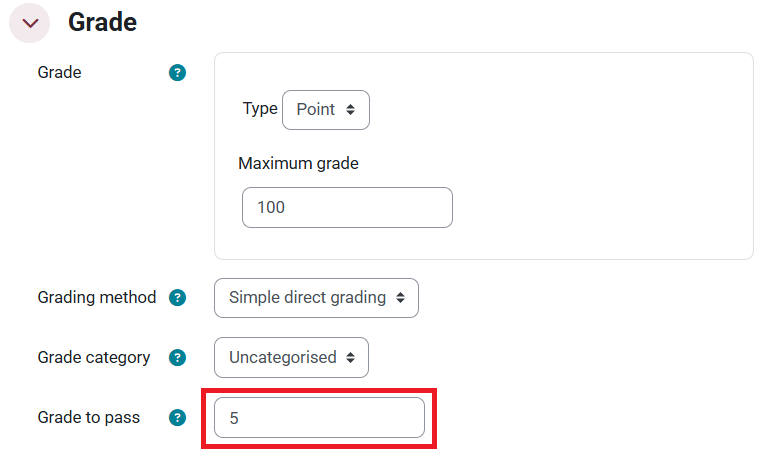
4. Scroll to the bottom of the settings page and expand the Completion conditions section. You will see the following conditions:
- None
- Student Must manually mark the activity as done
- Add Requirements
6. Click on Add requirements and select:
- Receive a grade
- Receive a passing grade
This allows Moodle to automatically track Assignment completion based on the passing grade you set. You can also optionally enable any other conditions you would like to use for the Assignment to be considered complete.
7. Click Save and display to save your changes. Repeat these steps for any other Assignments.
Setting up Activity Completion for Modules
Modules and content-based activities are typically used for activities where students only need to view or access content, such as pages, videos, files, assignments, or other course resources. Use this completion setting when you want Moodle to automatically mark an activity as complete once a student has viewed it or met the selected completion conditions.
2. Scroll down to the Completion conditions section.
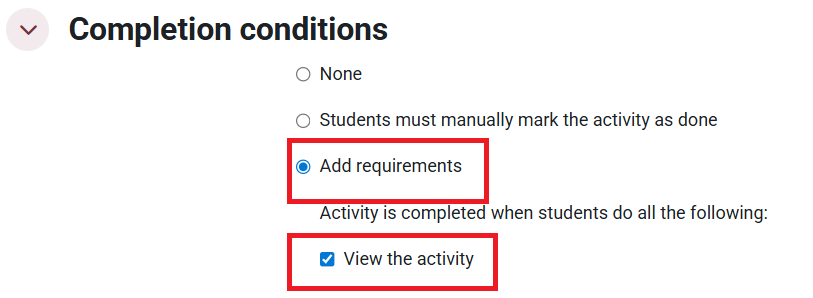
3. Click Save and display to save your changes.
Once changed, the activity will automatically be marked as complete when a student opens or views it.
This setting can be used on its own or combined with graded activities as part of the requirements for earning a digital badge.
After all required modules and activities have been configured for completion tracking, they can then be linked to a badge.

This work by Kwantlen Polytechnic University (KPU) is licensed under a Creative Commons Attribution-NonCommercial 4.0 International License.